
Free business tool / Canada
Prepare better photos for your Google Business Profile.
Resize, crop and compress your business photos before uploading them to Google. Preview the result, choose the right file type and download your images without creating an account.
Add your photos
Choose up to 20 photos. You can set each one up for a cover photo, a logo, a general business photo or a post, then download it ready to upload.
Drag photos here
or
JPG, PNG or WebP · up to 20 photos · up to 40 MB each. iPhone HEIC photos need to be saved as JPG first.
Private by design. Your photos are processed in your browser and are not uploaded to Locusolve or anyone else.
Your photos
Edit
Add your photos
Choose up to 20 photos. You can set each one up for a cover photo, a logo, a general business photo or a post, then download it ready to upload.
Drag photos here
or
JPG, PNG or WebP · up to 20 photos · up to 40 MB each. iPhone HEIC photos need to be saved as JPG first.
Private by design. Your photos are processed in your browser and are not uploaded to Locusolve or anyone else.
Your photos
How it works
Three steps, all on your device.
Your photos never leave your browser. The optimizer reads them, draws the size and crop you choose, and saves a new file for you to download.
-
Step 1
Add your photos
Drag them in or choose them from your computer or phone. JPG, PNG and WebP photos work; up to 20 at a time.
-
Step 2
Say what each one is for
Pick cover photo, logo, general photo or post. Each sets a sensible size, shape and file type, and you can change any of them and move the crop.
-
Step 3
Check it and download
Compare the original with the result, see the real size and file weight, check it against Google’s guidelines, then download one photo or all of them as a ZIP.
Google’s photo guidelines
What Google actually asks for.
Google’s Business Profile Help lists four things for photos: the file is a JPG or PNG; it is between 10 KB and 5 MB; it is ideally 720 pixels wide and 720 pixels tall; and it is at least 250 by 250 pixels. Photos should be in focus, well lit, and free of heavy filters or significant alterations.
Google does not set a shape (aspect ratio) for profile photos, so the crops this tool offers are our editing recommendations, not Google rules. Google also says that choosing a cover photo does not guarantee it will be shown first.
Every photo you prepare here is checked against those four published points before you download it. We last checked Google’s guidance on October 26, 2026; it can change, so Google’s own help pages are the final word.
Cover, logo and everyday photos
Different photos, different jobs.
-
Preparing a cover photo
Choose one photo that shows what customers can expect: your storefront, your team at work or a finished job. A wide crop (16:9 here) usually frames a scene well, but keep the important part near the middle, because Google may show it cropped differently in different places.
Google may still choose another photo to show first. Adding several good photos helps more than relying on one.
-
Preparing a logo
A logo should be square, simple and readable when small. The logo setting makes a 720 × 720 px square and saves it as PNG, so a transparent background stays transparent.
If your logo is wide, choose “Keep the whole photo” so no letters are cut off, or use a square version of your mark.
-
Preparing general business photos
Interior, exterior, team and work photos tell customers what you are like. The general setting keeps the whole photo, makes it 1,600 px on its longest side and saves a light JPG.
Real, recent photos are worth more than polished stock images, and Google asks for photos that are not heavily edited.
File types and quality
Choosing JPG, PNG or WebP.
-
JPG for photos
JPG makes small files from photographs with very little visible loss. A quality of 80 to 90 is right for most photos. It has no transparency: clear areas become white.
-
PNG for logos and graphics
PNG keeps sharp edges, text and transparent backgrounds exactly. It makes much larger files from photographs, so use it for logos and graphics, not for camera photos.
-
WebP for your website
WebP makes even smaller files and is well suited to your own website. Google Business Profile asks for JPG or PNG, so do not upload WebP files there.
-
Size and file weight
For Google, aim for at least 720 px on the shorter side and a file between 10 KB and 5 MB. The optimizer shows the real size and weight of each result and warns you when either is outside Google’s guidance.
Common mistakes
Photo mistakes worth avoiding.
-
Stretched or squashed photos
Forcing a photo into a different shape distorts it. The optimizer never stretches: it crops or keeps the whole photo.
-
Tiny or blurry images
Small screenshots and heavily zoomed photos look soft. Start from the original file and stay above 720 px where you can.
-
Huge files straight from the camera
Phone photos are often several megabytes. Making them smaller keeps them under Google’s limit and quicker to upload.
-
Logos cut off or on a solid box
Cropping a wide logo square cuts letters off, and saving a transparent logo as JPG adds a white box. Use Fit and PNG.
-
Heavy filters and edits
Google asks for photos without significant alterations or excessive filters. Brightness and straightening are fine; a different-looking business is not.
-
Stock or borrowed photos
Customers want to see your real premises, team and work. Use photos you took or have the rights to.
FAQ · 7 questions
Google Business Profile photo questions.
Have another question? Call 403-383-4306 or send us a message.
Google recommends 720 pixels wide and 720 pixels tall, with a minimum of 250 by 250 pixels, and a file between 10 KB and 5 MB in JPG or PNG format. Larger photos are fine as long as the file stays under 5 MB.
Google’s photo guidance does not set an aspect ratio. The square, 4:3 and 16:9 crops in this tool are editing recommendations that tend to display well, not Google requirements.
Not necessarily. Google says setting a cover photo does not guarantee it will appear as the first image for your business.
No. The optimizer works entirely in your browser. Your photos are not sent to Locusolve, stored or shared.
Most browsers cannot open HEIC files, so this tool does not accept them. On the iPhone, set Settings > Camera > Formats to Most Compatible, or share the photo as a JPG, then add it here.
There is no evidence that photo compression or file names change where you rank. Good, current photos help customers decide, and smaller files are quicker to upload and load.
Saving a new file through the browser leaves out the camera details stored in the original, such as the GPS location in a JPG. We check this for JPG output; to be certain for a sensitive photo, check the downloaded file’s details on your device.
If you would like help
A profile that is looked after.
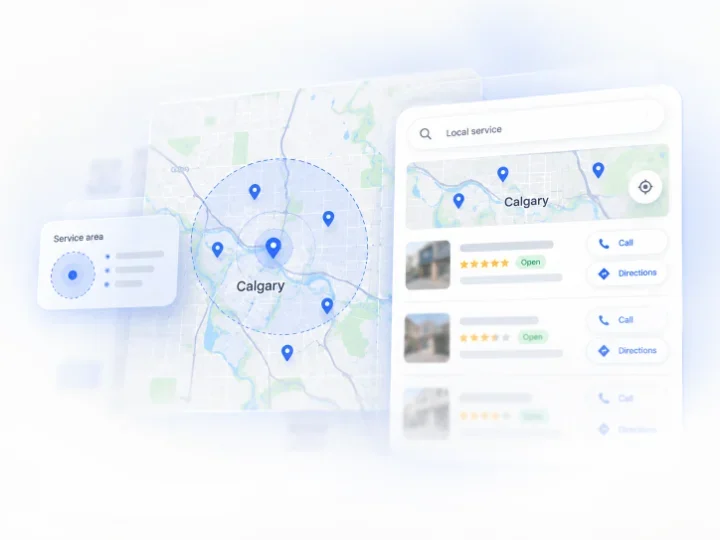
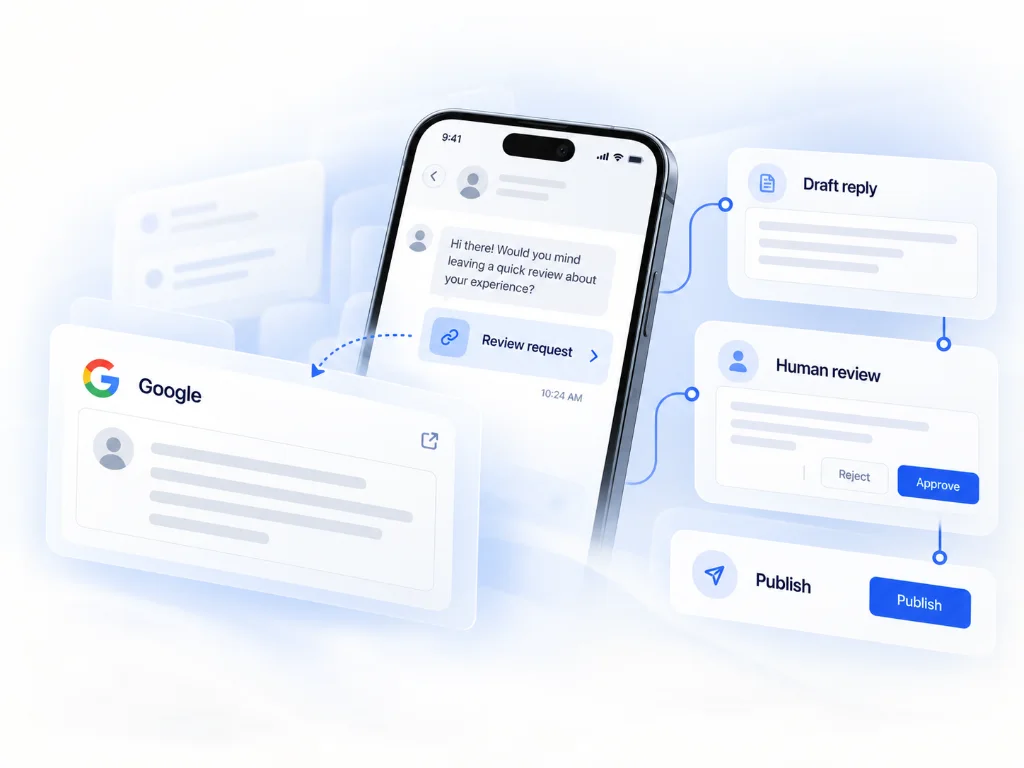
The tool is free to use on its own. If you would rather have your Business Profile photos, details and posts handled for you, these are the services closest to it.
LOCUSOLVE
Want your profile handled for you?
Book a free consultation and we will look at your Google Business Profile with you, then suggest what is worth doing first.